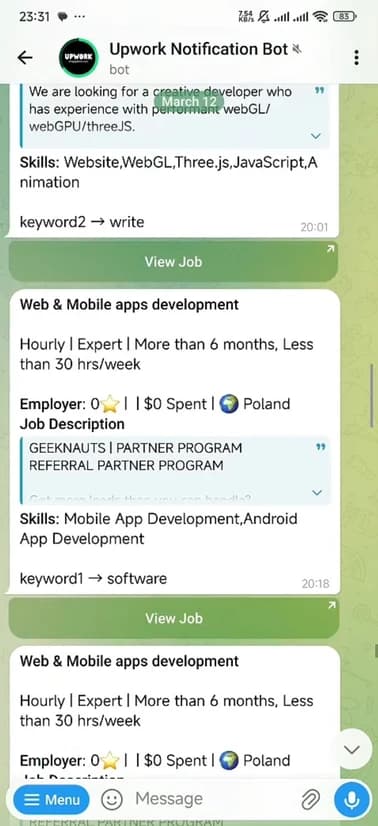
You already know the problem. A good Upwork job goes up. You see it two hours later, open it, and there are already 30 proposals sitting in the queue. The client has probably already shortlisted someone. Your proposal, no matter how good it is, will get three seconds of attention if it gets any at all.
This is not a proposal quality problem. It is a timing problem. And the fix is simpler than most freelancers realize: get a Telegram bot to tell you the moment a matching job goes live, then be one of the first five to apply.
This guide walks you through exactly how to set that up, step by step.
Why Speed Matters on Upwork
Upwork's proposal queue is not a fair playing field. Clients do not scroll through all 40 proposals with equal attention. They look at the first handful, find someone who seems right, and move on. By the time most freelancers even see a listing, the decision window has already started closing.
The mechanics work like this: the moment a job is posted, a small number of fast-moving freelancers apply within the first few minutes. Those proposals sit at the top of the client's inbox when they check their notifications. The client clicks through them, maybe invites one or two people to interview, and the rest of the queue becomes background noise. This is not speculation. It is the consistent experience of working freelancers across every category.
Most freelancers check Upwork manually. They open the app in the morning, scroll the job feed, maybe check again after lunch. By then, a job posted at 6 AM already has 20 proposals. You are not competing on quality at that point. You are competing from a structural disadvantage.
The solution is to stop checking manually and let automation do the watching for you. See also: how to be first to apply on Upwork every time for a broader strategy on winning the timing game.
What You Need Before You Start
Setup takes about five minutes and requires nothing you do not already have. Before you begin, make sure you have:
- 01A Telegram account (free at telegram.org). Install it on your phone, not just your desktop. The whole point is push notifications that reach you wherever you are, not just when you happen to have a browser tab open.
- 02An active Upwork account with at least your profile set up. You do not need a paid plan to receive alerts, but you will need connects to apply once the job comes in.
Step-by-Step Setup
Open the bot
Go to t.me/KMupworkbot on your phone or desktop. Tap Start. That is it. No download, no account creation, no extension to install. The bot lives inside Telegram, which you already have.
Start your free trial
The bot offers a 7-day free trial with no payment information required. Activate it and you will have full access to alerts right away. Use those seven days seriously. Set up real keywords, not placeholder ones, and treat every alert like a live test.
Set your keywords
You can configure up to 5 keywords or keyword phrases. The bot will monitor Upwork and notify you any time a new job matches. Specific keywords work significantly better than broad ones. "WooCommerce checkout fix" will surface more relevant jobs than "web development" and will save you from sifting through listings that have nothing to do with your actual skills. More on keyword strategy in the next section.
Wait for your first alert
Within seconds of a matching job being posted on Upwork, your phone will buzz with a Telegram notification. The alert includes a direct link to the job. Tap it, read the brief, and if it fits, open your proposal template and apply.
How to Choose the Right Keywords
Your keywords are the most important configuration decision you will make. The bot is only as useful as the jobs it surfaces. A poorly chosen keyword will either miss the jobs you want or flood you with irrelevant listings you have to ignore. Either way, you lose the time advantage.
Think about keyword selection less as a technical task and more as a translation exercise. You are trying to match the words a client would type into Upwork's job posting form against the words that represent what you actually do.
Be specific, not broad
A broad keyword like developer will match hundreds of jobs a day, most of which have nothing to do with your specialty. A specific keyword like react developer or shopify speed optimization filters the noise and surfaces the listings you can actually win. The goal is not volume. The goal is relevant, actionable alerts that you can respond to immediately.
developer
designer
writer
marketer
react developer
figma designer
SEO blog writer
email copywriter
Use the words clients actually write
Clients on Upwork are not usually technical writers. They describe their problem in plain language. A client with a broken checkout page does not post "I require a full-stack developer with WooCommerce expertise." They write "fix my WooCommerce checkout" or "my Stripe payment keeps failing." Your keywords should match the language of the problem, not the language of a job description.
Spend five minutes reading recent Upwork job titles in your category. You will quickly notice patterns. Those patterns are your best keywords.
Mix specific and slightly broader terms
A good keyword setup has a mix of precise phrases and slightly wider ones. Use 3 to 4 highly specific keywords for your core niche, then 1 to 2 broader terms to catch adjacent opportunities you might not have considered. This way you stay focused without putting yourself in a blind spot.
Here are keyword examples by category to get you started:
shopify
wordpress
woocommerce
react
landing page
n8n
zapier
make.com
data entry
virtual assistant
blog writing
SEO article
copywriting
product description
Tips to Win More Jobs Once Alerts Are Live
The alert gets you in the door. What you do in the next ten minutes determines whether you get the job. These habits will help you convert speed into actual contracts.
Keep a proposal template ready to fire
The worst time to write a proposal is when you are already looking at a job posting. You will either rush it, or you will spend twenty minutes crafting something and lose the timing advantage you just worked to build. Keep a base template that covers your opening line, a brief relevant example, and a closing question. Customize the middle section for each job, but the scaffolding should already exist. See how to be first to apply on Upwork every time for a deeper breakdown of proposal structure.
Apply within the first 10 minutes
According to Upwork's own guidance on application timing, early applications consistently outperform later ones. The GigRadar data puts it even more starkly: a reply submitted under 30 minutes is 21 times more likely to get a response than one submitted hours later. That is the golden window. If you see an alert and you are busy, at minimum bookmark the job and set a reminder. But ideally, stop what you are doing and apply.
Ask one smart question in your proposal
A question signals that you actually read the brief and thought about the problem. It also invites the client to reply, which moves you from proposal to conversation faster than any pitch line. Make the question specific to their situation. For example: "Is the issue only happening on mobile, or are you seeing it on desktop too?" A question like that shows expertise and opens a door. Avoid generic openers like "Can you tell me more about this project?" That reads as lazy.
Do not lead with your rate
Your rate is not a selling point at the proposal stage. It is a negotiation that happens after the client is already interested in you. Leading with your price before you have established value is backwards. Open with what you understand about their problem, show one relevant example of you solving something similar, and ask your smart question. Let the rate conversation happen when they are already leaning toward hiring you.


